

Learn how to create and optimize your Google Business Profile Guide to boost local visibility. Step-by-step guide with tips on verification, business description, photos, and avoiding common mistakes.
Google Business Profile Guide-What is Google Business Profile (Formerly GMB)?
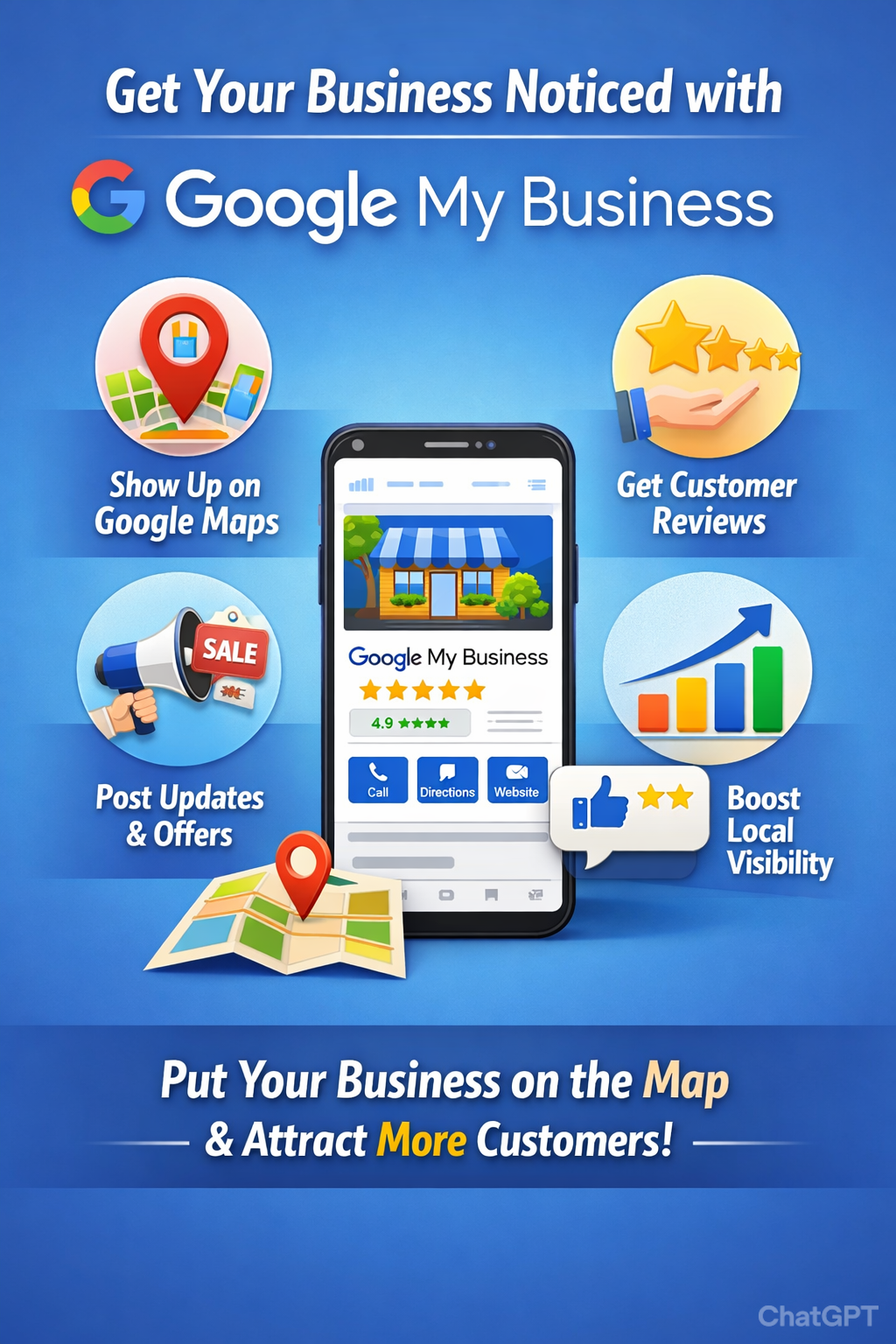
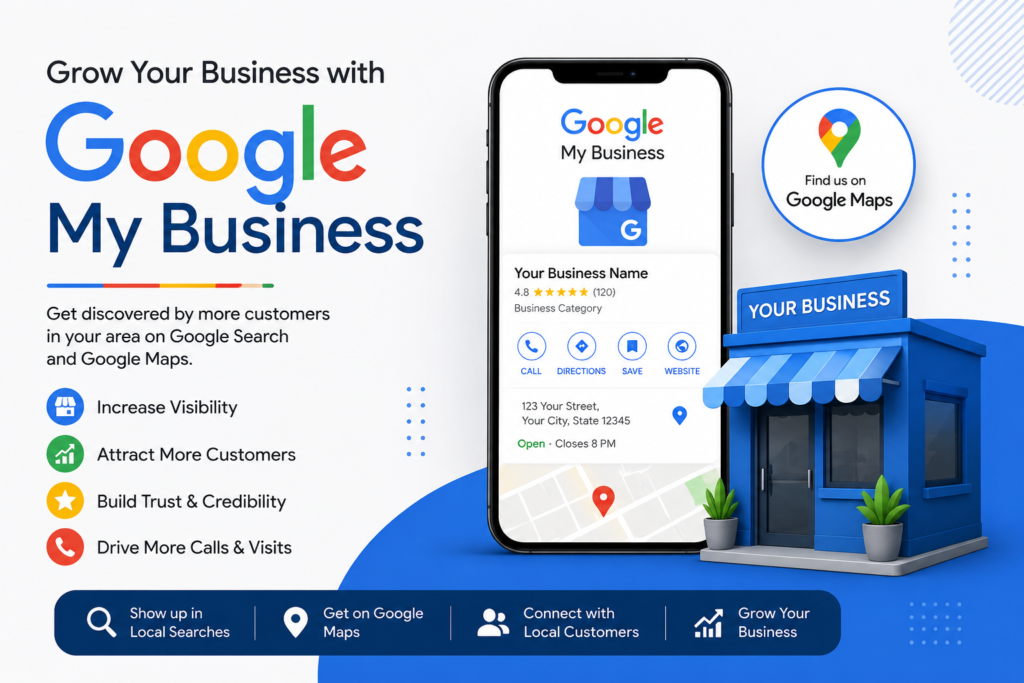
Google Business Profile Guide, previously known as Google My Business (GMB), is a free tool that allows your business to appear prominently on Google Search and Google Maps. It helps potential customers easily find essential information about your business such as your address, phone number, website, photos, reviews, and more.
Having a well-optimized Google Business Profile is essential for local SEO and online visibility. It improves your chances of showing up in local searches, driving more foot traffic, calls, and website visits.
Why You Need a Google Business Profile Guide for Your Business
Every day, millions of people search for products and services near them. A Google Business Profile listing helps your business stand out in these searches by providing accurate and trustworthy information directly on Google.
Key benefits include:
- Increased local visibility on Google Search and Maps
- Higher chances of attracting nearby customers
- Ability to showcase your business with photos, posts, and reviews
- Easy communication through messaging and call buttons
- Insights on how customers find and interact with your business
Google Business Profile Guide-What You Need Before Creating Your Google Business Profile
Before you start setting up your profile, gather the following essentials:
- A Gmail account to sign in
- Your exact business name
- The most accurate business category (very important for search relevance)
- Your business address (or service area if you don’t have a storefront)
- A valid phone number
- Your website URL (optional but highly recommended)
Google Business Profile Guide-Step-by-Step Guide to Creating Your Google Business Profile
Step 1: Visit Google Business
Go to google.com/business and click “Manage now” to start.
Step 2: Sign in
Log in using your Gmail account.
Step 3: Enter Your Business Name
Type your exact business name. If it appears in the suggestions, select it. Otherwise, choose “Create a business with this name.”
Step 4: Choose Your Business Category
Select the category that best fits your business, such as:
- Website Designer
- Digital Marketing Agency
- IT Services
- Music School
- Guitar Instructor
Remember, your primary category has the biggest impact on search results, though you can add additional categories later.
Step 5: Add Your Business Location
You’ll be asked if customers can visit your location.
- Select Yes if you have a physical storefront or office.
- Select No if you provide services at customer locations.
If yes, enter your full and accurate address.
Step 6: Define Your Service Area (Optional)
If you serve customers at their location, list the cities or regions you cover—e.g., Mumbai, Navi Mumbai, Thane.
Step 7: Add Contact Details
Provide your phone number and website URL if available.
Step 8: Verify Your Business
Google requires verification to confirm your business is legitimate. Verification methods include:
- Postcard by mail (most common, usually arrives in 5–7 days)
- Phone or SMS (available for some businesses)
- Email verification (less common)
- Video verification (new method in some cases)
Google Business Profile Guide- What to Do After Verification: Optimize Your Profile
Verification is just the start. To maximize your Google Business Profile’s impact, take these steps:
1. Add High-Quality Photos
Include:
- Your business logo
- Cover photo representing your brand
- Images of your office, work samples, or products
- Team photos to build trust
2. Write a Compelling Business Description
Use up to 750 characters to describe your business. Make it SEO-friendly by naturally incorporating keywords related to your services and location.
3. List Your Services
Clearly outline the services you offer, such as:
- Website Development
- E-commerce Solutions
- SEO Services
4. Set Accurate Business Hours
Ensure your working hours are up-to-date so customers know when they can reach you.
5. Enable Messaging
Allow customers to contact you directly via WhatsApp or Google messaging for quick responses.
6. Post Regular Updates
Share news, offers, promotions, or client testimonials to keep your profile active and engaging.
Common Google Business Profile Mistakes to Avoid
Avoid these errors to ensure your profile performs well:
❌ Using a fake or inaccurate address
❌ Keyword stuffing in your business name (use your real business name only)
❌ Choosing the wrong business category
❌ Not uploading any photos
❌ Ignoring customer reviews (respond promptly)
Suggested Keywords for Your Google Business Profile Article
- Google Business Profile
- Google My Business optimization
- Local SEO
- How to create Google Business Profile
- Google Business verification
- Optimize Google My Business
- Local business listing
- Google Maps business listing
- Business profile photos
- Google Business description
Conclusion
Creating and optimizing your Google Business Profile is a vital step in building a strong local online presence. It helps your business appear in local searches, attract more customers, and build trust through accurate information and engagement.
Follow this step-by-step guide to set up your profile correctly, verify your business, and keep it optimized with fresh content, photos, and responsive communication. Avoid common pitfalls and watch your local visibility and customer interactions grow!





Leave a Reply